How To Replace or Upgrade RAM and Storage Safely
Are you exhausted with your sluggish computer, struggling to run multiple applications, or constantly being warned about low storage? It may be time for a RAM or storage upgrade. These upgrades are among the most effective ways to breathe new life into an aging system, improve speed, and expand storage capacity. Knowing how to do this safely can save you money and extend the usability of your computer.

New Life Technology Group gathered information about the right tools, installation practices, and preventive steps for RAM and storage upgrades. With the proper guidance, you can confidently improve your computer’s performance without risking damage to sensitive components.
RAM and Storage Explained
RAM (Random Access Memory) affects how smoothly programs run and how many applications your system can handle simultaneously. Adding or upgrading RAM often results in immediate speed improvements.
Storage determines the amount of data your computer can hold. Switching from a traditional hard disk (HDD) to a solid-state drive (SSD) will expand capacity and significantly increase speed. SSDs access data faster, boot quicker, and generate less heat than HDDs.
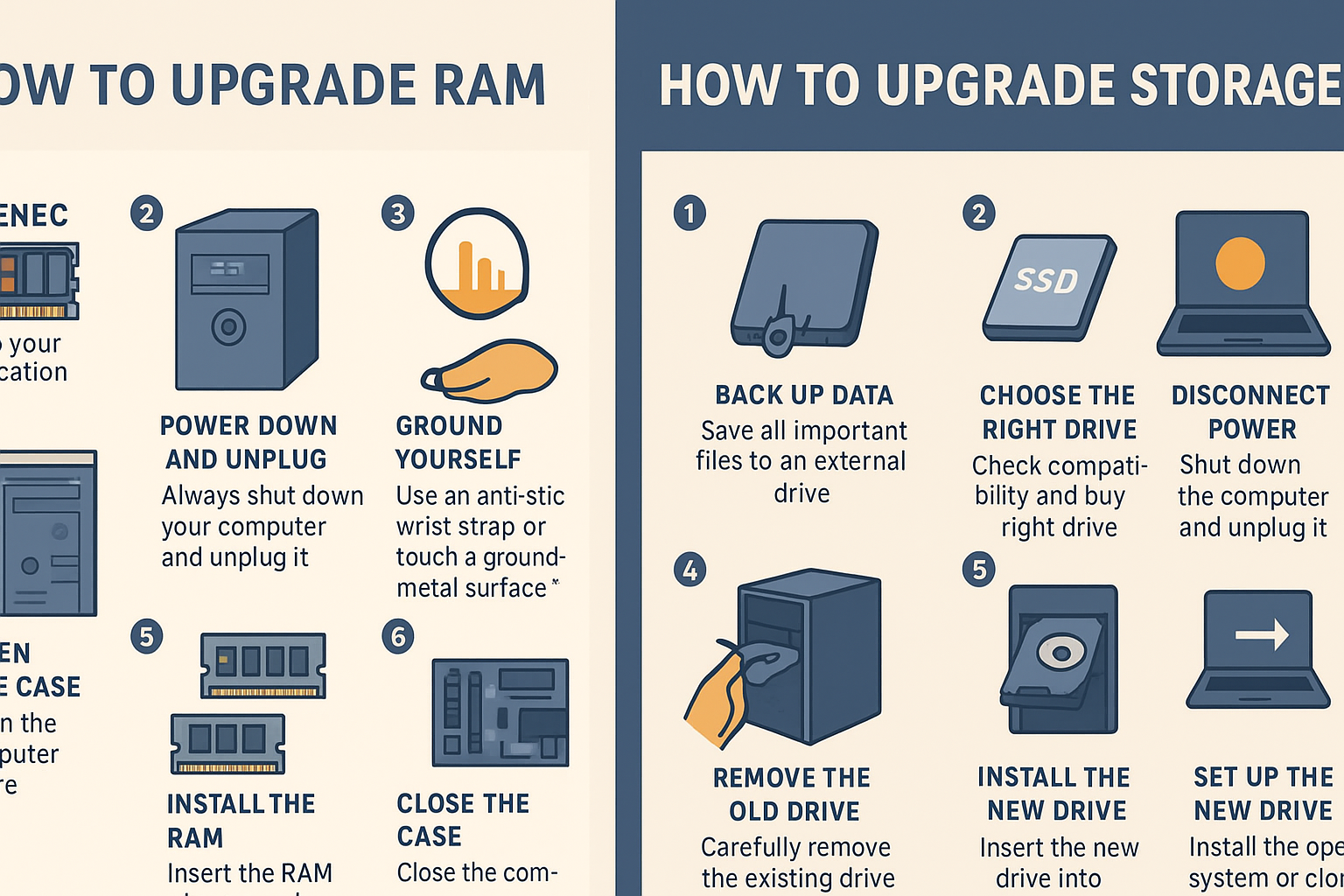
How To Replace or Upgrade RAM Safely
- Check Compatibility - Review your computer’s specifications to confirm the type, speed, and maximum capacity of RAM it supports.
- Power Down and Unplug - Always disconnect your computer from power and remove the battery (for laptops) before beginning.
- Ground Yourself - Static electricity can damage RAM. Use an anti-static wrist strap or touch a grounded metal surface.
- Access the RAM Slot - Open the computer case or laptop access panel with care. Gently release existing modules, if necessary.
- Insert New RAM - Align the notch in the RAM stick with the slot and press firmly until it clicks into place.
- Reassemble and Test - Close the case, reconnect power, and boot the computer. Check system settings to ensure the upgrade was recognized.
How To Replace or Upgrade Storage Safely
- Back Up Data - Save all crucial files to an external drive or cloud storage before swapping storage devices.
- Choose the Right Drive - Confirm whether your system uses SATA, M.2, or NVMe connections. SSDs are recommended for most upgrades.
- Disconnect Power - Unplug your system and ground yourself before handling storage components.
- Remove the Old Drive - Carefully disconnect the old drive from its connectors or brackets.
- Install the New Drive - Slide the new drive into its slot and secure it with screws if required.
- Reinstall Operating System or Clone Data - Either install a fresh operating system or clone the old drive’s contents onto the new one.
Preventive Maintenance for RAM and Storage
- Regular Backups - Always keep a backup of essential files to prevent loss in case of hardware failure.
- Keep Your System Clean - Dust buildup can lead to overheating and shorten component lifespan.
- Update Firmware - SSD manufacturers often release firmware updates to improve stability and performance.
- Avoid Overloading RAM - Running too many resource-heavy programs simultaneously can stress even upgraded systems.
- Check Health Status - Use diagnostic tools to monitor storage health and plan replacements before failure occurs.
Why Donate Your Old Devices To New Life Technology Group
When you upgrade RAM or storage, you may end up replacing a whole computer. Instead of letting outdated devices gather dust or contribute to electronic waste, consider donating them to New Life Technology Group.
This nonprofit refurbishes computers, wipes sensitive data, and provides technology to children and families in underserved communities through its Computers for Kids Program.
By donating, you reduce harmful e-waste, support sustainability, and provide access to technology for those who may not otherwise have it.
Your donation helps children and families gain valuable tools for education, career advancement, and everyday life. It’s a way to ensure your old devices continue making a positive impact long after you’ve upgraded them.
Key Considerations for Replacing or Upgrading RAM and Storage
Upgrading RAM and storage is straightforward when handled with care, but there are important considerations to keep in mind:
- Compatibility is Critical - Each system has limits on RAM capacity, slot type, and supported storage drives. Using incompatible hardware wastes your money and risks damaging your computer.
- Static Electricity Risks - Even small static charges can destroy sensitive components. Always ground yourself or use anti-static work gear.
- Backups Prevent Heartbreak - Never begin a storage replacement without backing up important files. Data loss during the process is a common mistake.
- Professional Help is an Option - if you’re uncomfortable opening your computer, consider a technician. Paying for installation is often cheaper than repairing accidental damage.
- Take It Slow - Rushing leads to forced parts, broken clips, or misplaced screws. Patience and precision ensure a successful upgrade.
By considering these factors, you maximize the benefits of an upgrade while minimizing risks. A careful approach turns what may feel intimidating into an empowering way to extend your computer’s performance and lifespan.
RAM and Storage Upgrades or Replacements
In this article, you discovered how to safely upgrade RAM and storage, the importance of preventive maintenance, and the impact of donating old devices through New Life Technology Group.
By carefully selecting compatible hardware, grounding yourself, backing up data, and maintaining components, you keep your computer running faster and more reliably.
Ignoring these practices can lead to compatibility issues, data loss, or physical damage to your computer, often resulting in costly repairs or early replacement. Safe upgrades, combined with thoughtful donations, ensure your technology investment delivers value for you and your community.
PREVIOUS: How To Keep Your Computer Cool and Prevent Overheating
NEXT: How To Improve Startup Speed by Managing Background Apps
Dawsonville, GA 30534
(404) 313-8215