
How To Use Built-In Tools to Optimize System Performance
Are you frustrated with your computer dragging its feet when you need it to run quickly? Programs stall, tabs crash, and your once-smooth workflow grinds to a halt. Knowing how to use a computer’s built-in optimization tools can save you time, money, and unnecessary stress.

New Life Technology Group gathered information about built-in optimization tools, cooling methods, and preventive maintenance practices to help you maintain peak system performance. By following these steps, you can keep your computer running smoothly without relying on risky third-party downloads.
Understanding Built-In Optimization Tools
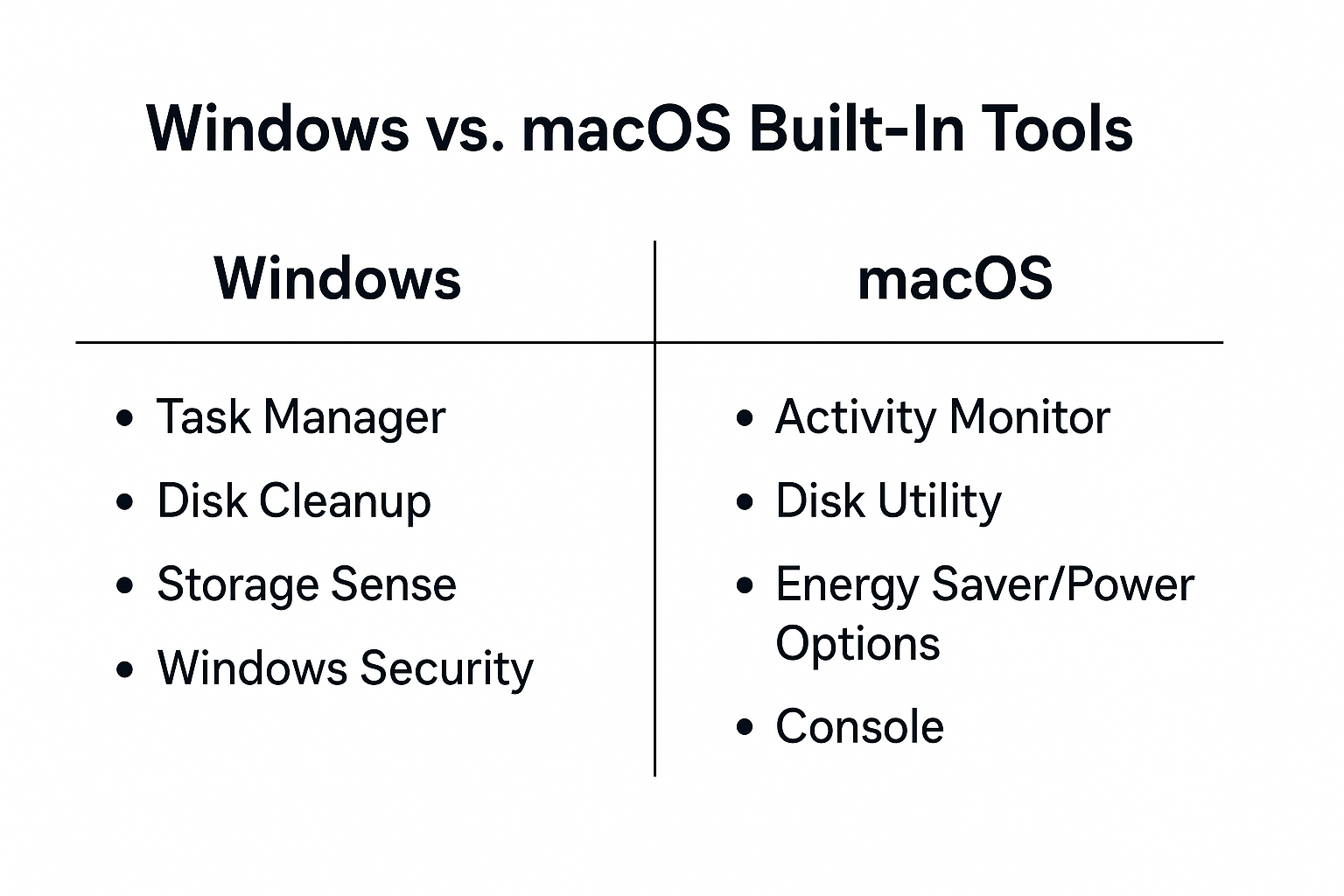
Both Windows and macOS come equipped with utilities that monitor, analyze, and improve system performance. These tools help you to identify resource-hogging programs, clean up disk space, check for overheating, and keep your system optimized for long-term use.
Windows Tools
- Task Manager - Monitors real-time CPU, memory, disk, and network usage. Helps you end non-essential programs and control startup apps.
- Disk Cleanup - Removes unnecessary files such as temporary data, cache, and system logs.
- Storage Sense - Automates disk cleanup, freeing space without user input.
- Windows Security - Protects against malware and viruses that can slow performance.
- Performance Monitor - Provides detailed reports about resource use and hardware health.
macOS Tools
- Activity Monitor - Equivalent to Task Manager, shows which apps and processes are consuming resources.
- Disk Utility - Repairs disk permissions, runs diagnostics, and clears storage problems.
- Energy Saver/Power Options - Optimizes performance by adjusting power settings.
- Console - Provides system logs that help identify recurring performance issues.
- About This Mac > Storage - Displays storage usage and options to clear or manage space.
Preventing Computer Overheating
Performance problems are not just software-based – overheating is another common cause of sluggish systems and hardware damage. Built-in monitoring tools can help you track thermal health, but you must also take preventive steps to keep your device cool.
Methods to Prevent Overheating
- Proper Ventilation - Ensure your computer sits on a hard, flat surface. Avoid using it on blankets or couches where airflow is restricted.
- Clean Fans and Vents - Dust buildup is one of the most significant contributors to heat. Regularly clean with compressed air.
- Adjust Power Settings - Built-in energy-saving options reduce unnecessary workload when the computer is idle.
- Monitor Temperature - Windows and macOS can be paired with built-in diagnostics or free manufacturer tools to watch CPU and GPU temperatures.
- Use Cooling Accessories - Laptop cooling pads or external fans can help reduce internal stress on components.
Preventive Maintenance
System optimization is not a one-time process - it requires ongoing attention. Preventive maintenance ensures long-term health and prevents minor issues from escalating into serious failures.
- Update your Operating System Regularly - Both Windows Update and macOS Software Update include critical patches for performance and security.
- Uninstall Unused Programs - Built-in uninstallers prevent clutter that slows down startup and consumes resources.
- Run Disk Utilities Monthly - Disk Cleanup, Storage Sense, and Disk Utility help maintain storage health.
- Back Up Data Frequently - Built-in tools like File History (Windows) and Time Machine (macOS) prevent data loss.
- Restart Periodically - Rebooting clears temporary files, refreshes system memory, and restores optimal performance.
Why Donate Your Old Devices To New Life Technology Group
When a computer reaches the end of its useful life for you, it doesn’t have to go to waste. Donating older devices ensures they continue providing value while helping people in need.
New Life Technology Group accepts old computers, laptops, and electronics, securely erases all personal data, and refurbishes the devices through its Computers for Kids Program. Once refurbished, these devices are donated to schools, shelters, and underserved families who may otherwise lack access to technology.
This program not only extends the lifecycle of electronics but also prevents harmful e-waste from entering landfills. Donating helps bridge the digital divide, providing children with learning resources and opportunities to grow and thrive in today’s connected world. Your unused computer could become a student’s gateway to education or a family’s access to opportunity.
Key Considerations for Using Built-In Tools to Optimize System Performance
When it comes to optimizing your computer with built-in tools, a few key considerations ensure you get the best results:
Identify Bottlenecks First
Before making changes, use Task Manager or Activity Monitor to identify what is slowing down your system. Focus on addressing the biggest drains first.
Balance Performance and Convenience
Disabling background apps may improve speed, but can delay certain conveniences like auto-syncing cloud storage. Adjust based on your workflow.
Regularly Schedule Maintenance
Performance monitoring should become a monthly habit. Disk cleanups, software updates, and startup reviews help keep your system running consistently.
Understand the Risks
Avoid shutting down critical processes you don’t recognize. Some system services may appear resource-heavy, but are necessary for stable operation.
Use Built-In Before Third-Party Tools
Relying on built-in utilities reduces security risks. Third-party software may sometimes promise performance boosts, but often introduces vulnerabilities.
By considering these points, you can safely and effectively use built-in tools to maximize performance without unnecessary complications.
Computer System Performance Enhancement
In this article, you discovered how to use built-in system tools on Windows and macOS to optimize performance, prevent overheating, and practice preventive maintenance. You also learned how donating old devices to New Life Technology Group benefits schools, shelters, and underserved families.
When you use these tools and apply consistent maintenance, your computer will run smoothly, stay cooler, and last longer. You’ll spend less time waiting for programs to load and more time getting things done.
Ignoring built-in optimization can lead to a slow startup, persistent lag, overheating risks, and shortened device lifespan. Worse, it may leave you frustrated and prematurely shopping for costly upgrades. Take control now - your computer’s performance depends on it.
PREVIOUS: How To Improve Startup Speed by Managing Background Apps
NEXT: How To Free Up Hard Drive Space Without Losing Important Files
Dawsonville, GA 30534
(404) 313-8215